Setting Up Outlook Express
You can configure your email so that you can send and receive using Outlook Express, Outlook, or your favorite POP3 email program. To do this, you must contact your ISP (Internet Service Provider) and find out what their Incoming Mail Server and Outgoing Mail Server names are. You also need your email address and password.Once you have this, follow these easy steps:
- Start your email program. For this example we will use Outlook Express.
- From the Menu Bar, click TOOLS | ACCOUNTS.
- Click on the MAIL tab.
- Click the ADD button, then choose MAIL.
- Enter your name. This is the name that will be displayed in the FROM field to recipients of your email. Click NEXT.
- Enter your email address. It will be "You@ev1.net" or whatever your email address is. Click NEXT.
- Here you will enter your mail servers. In this example they are both mail.palmbeachpoloclub.com.
Make sure you have POP3 chosen at the top. Your settings should look just like this:
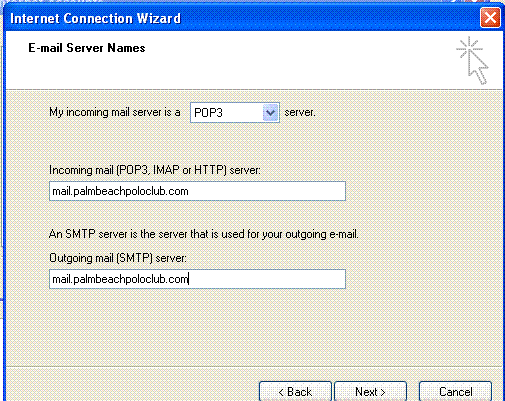
Again, make sure you have the correct server names that you got from your ISP. Sometimes they are the same, sometimes they are different. Click Next. - This next page is where you enter your login information. For your user, enter your
either your ENTIRE email address OR just the first part of your email address, the
part before the @ sign. Each ISP is different; most just require the first part (your user name). Use the password you
were assigned by your ISP.
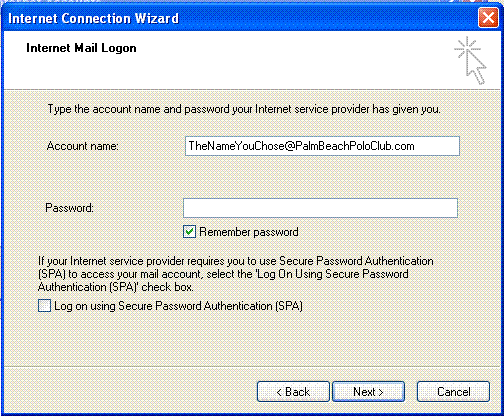
Click NEXT. - Click FINISH. That's it. You might have to go to ADVANCED and check the box that says "My outgoing email requires a password. It is usually the same password.